
In this post, I’ll teach you how to easily sideload ebooks you bought outside of Amazon to your Kindle eReader so you can read them just as comfortably as your other books.
You may have seen that I now have my own store where you can buy my ebooks – courtesy of PayHip. Those books are delivered to you via BookFunnel in my case, but of course, that only means you now have the ebook you bought sitting on your computer. (And in the BookFunnel library, in case something happens to your computer.)
So how do you get the ebook to your Kindle?
It’s actually very, very easy, but you have to figure out your Kindle Email to set it all up. Bear with me, I’m slowly going to take you through all the steps, and after that, it’ll be easy peasy. And then you can start supporting your favorite authors by buying directly from them.
Once you have bought an ebook from a store like PayHip or an author’s website, you’ll download or save a file (generally an epub) to your computer. Then, you can simply email it to your Kindle account as an attachment. (I suggest setting up a folder for your book files so you can find them easily to attach them.)
Just write an email to your account, attach the epub, and it’ll show up in your content list in your Amazon account. Cool, right?
Let’s get started!
Find your Kindle Email
Before you can email anything to your Kindle, you need to find the exact email of your account with Amazon. That means getting a little familiar with your Content page in your Amazon account.
(Don’t worry, you only have to do this once. I promise.)
1. Log into your Amazon account online
I’m sure you can do this, after all, this is how you probably buy most of your ebooks. Go to the Amazon website and log into your account.
2. Find your Content Library
You’re probably aware of the Content Library, since you can also use it to send your books to different devices. At least I do that a lot (after every purchase, actually).
I made a screenshot to show you where to find the Content Library, just in case. Click on “Account and Lists” and you’ll see this:
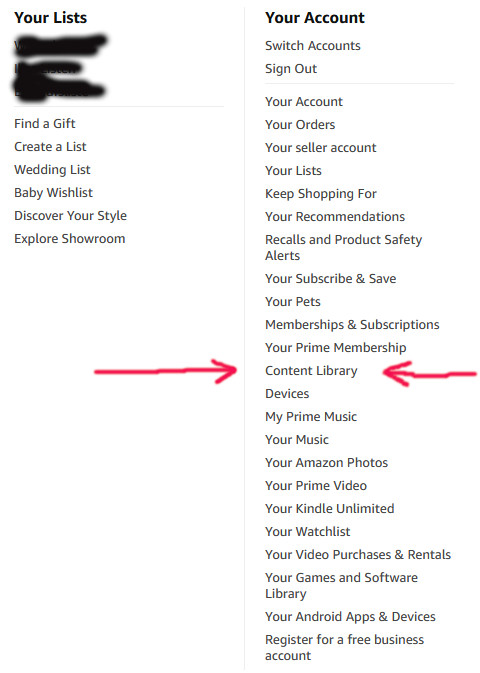
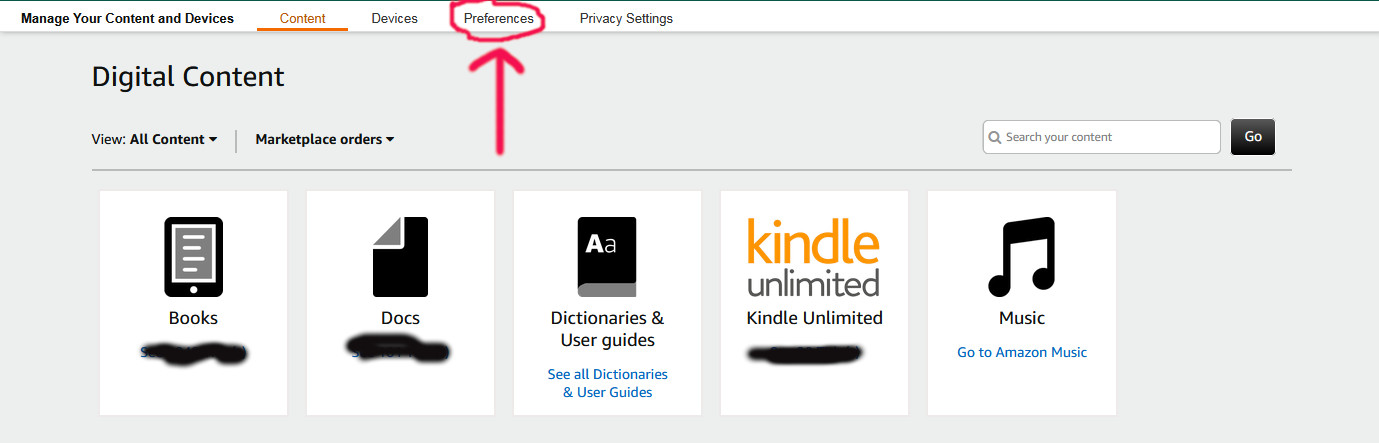
3. Go to your Content Library and pick Preferences.
Your Kindle Email hides under the Preferences tab in the Content Library. That’s the fourth tab from the left (or second from the right). The page automatically opens on the second tab, Content.
4. Find your Kindle Email
Scroll down in Preferences (pretty far, don’t despair) until you find the heading Send-to-Kindle E-Mail Settings.
There you’ll find one or more email addresses that all end in @kindle. They correspond to the devices you use, either your actual Kindle or the things you use the Kindle App on. In my case, that’s the phone, my PC and a laptop I use for traveling. (Sorry for the graying out stuff. I do not want you to send me books by mistake.)

Take the first one. (It doesn’t really matter, they all talk to your content library, but you can also pick the one corresponding to the device you read most on.)
5. Put that Kindle Email into your contacts/address book of your email program.
This will be very helpful. Give your Kindle Email address a clear name, because you’ll be using it a lot. (Well, I hope you will.)
Wait! Don’t close that webpage just yet!
6. Approve your own email for the Send to Kindle process
Amazon wants to know which emails are safe to receive epubs from, the setting is called Approved Personal Document E-mail List. You can add those emails just below the Send-To-Kindle E-Mail Addresses.

As you can see, I have three emails that I use to get ebooks to my Kindle, including my own author email. After all, I want my own books on my Kindle!
Did you notice it’s called “Personal Document”? That’s because Amazon puts those books you send to your Kindle into its own content category called “Documents” (or Docs) in the Content Library.
Now you can email ebooks to your Kindle at any time!
Now every time you buy an ebook directly, you can simply attach the file to an email that you send to your Kindle email addy. No need to put anything else into the email. It should show up on your Kindle almost right away.
Well… should. Amazon does not always work the way it should. But I’ve got your back.
I don’t see my new book on my Kindle? Help!
If you can’t see the book on your Kindle, go to the Content Library in your Amazon account, look under Docs and deliver it to the device you want to read the book on. Hang on, I’ll walk you through the steps:
1. Go to the Content Library and pick Docs (second image from the left).
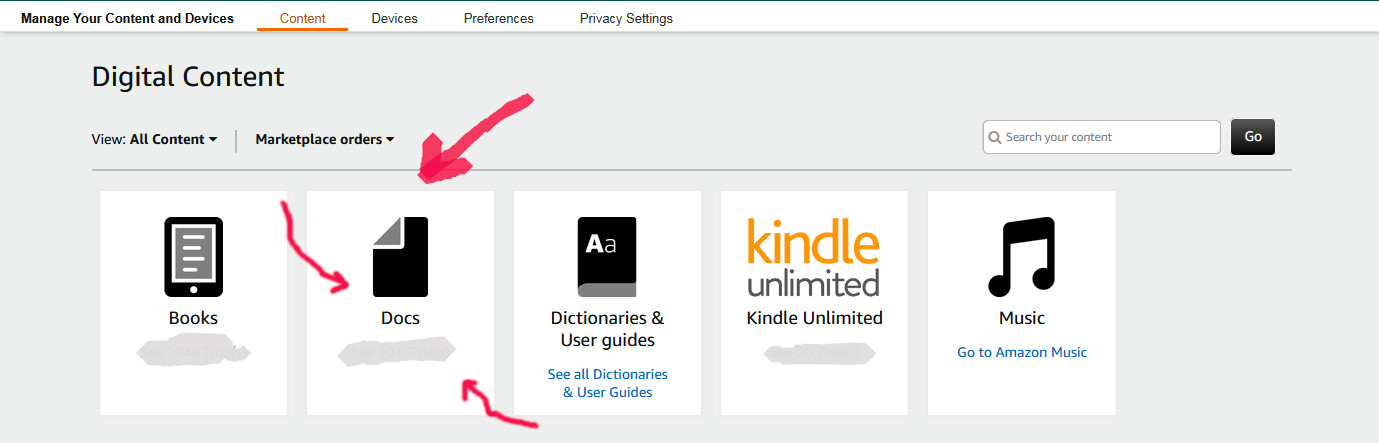
Yes, sorry, I got carried away a little with the arrows. But this is where all those lovely books you purchased directly from authors (while really supporting them!) will live.
2. Ask Amazon to deliver the content to the device of your choice.
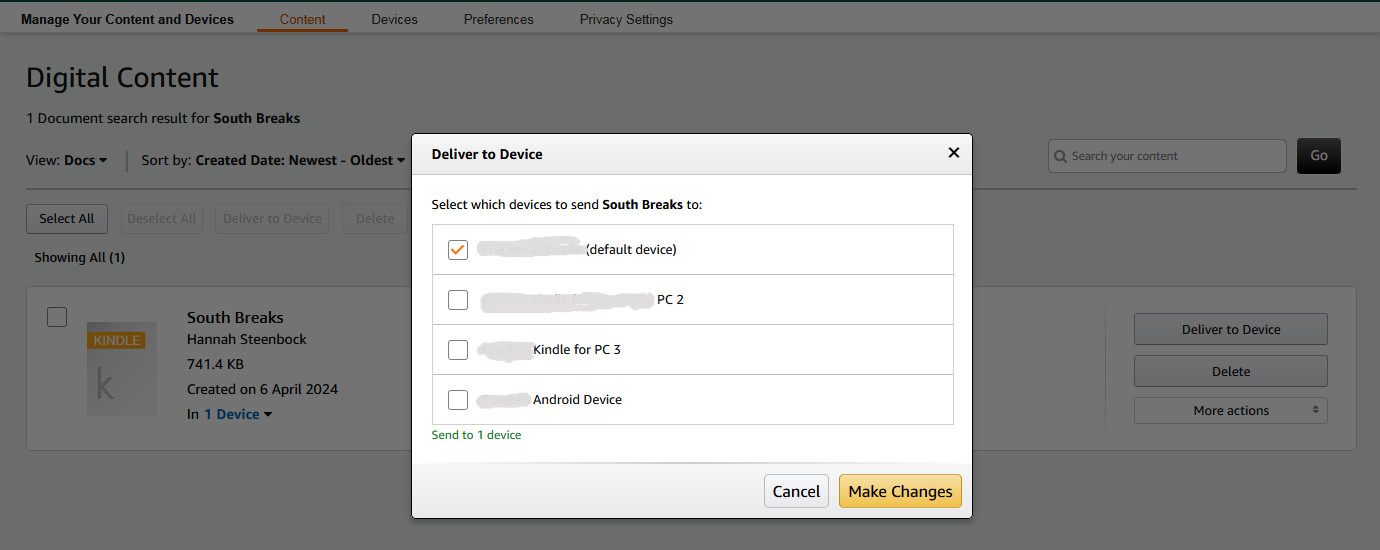
Find the book you want to read – there is a nifty search function, go for it. You’ll get a nice result like this (yes, I used my own book for the demo). Then click on “Deliver to Device”.
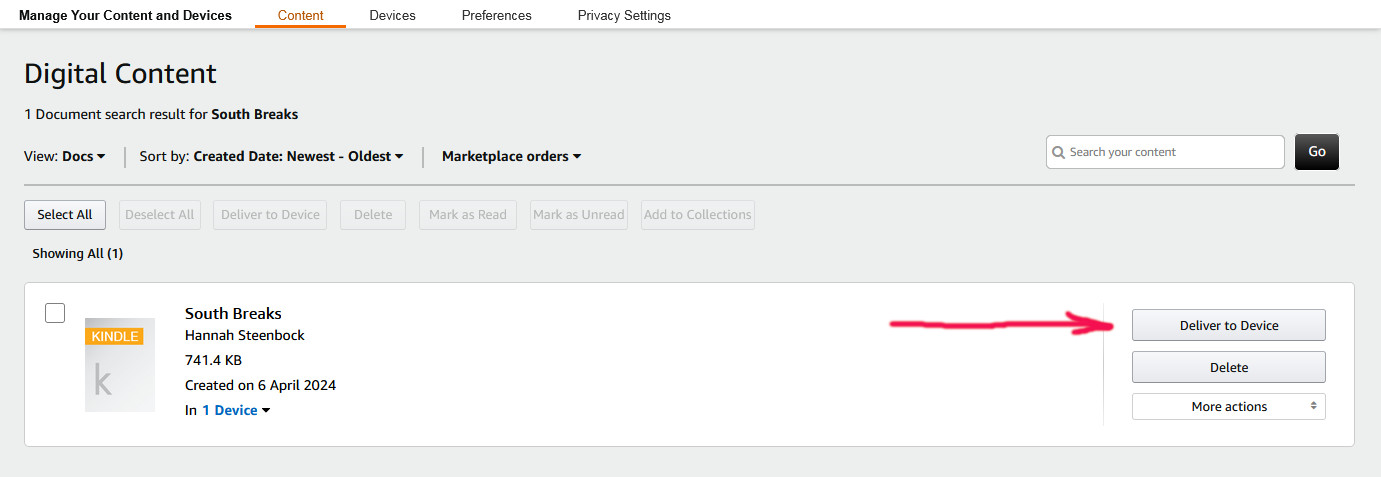
You get to check which device you want to have this book in (you can pick all of them, too), and then all you have to do is hit “Make Changes”.
Check your device – your book should be there. Happy reading!
Thank you!
You deserve a huge thank you at this point.
First of all, for bearing with me and learning all this tricky new stuff about your Kindle and your ebooks. I know that it can be scary to figure out a new way of buying and reading books. It’s also hard to change habits and then pick a system that is slightly more complicated than just buying a book from Amazon.
Even more so, you deserve a huge thank you for actively choosing to support indie authors directly. You are choosing to send your money to the creators, rather than a big corporation that is already abusing its power. And you do that by accepting a slightly more complicated process than you have to.
That’s wonderful.
This is a way to change the world, with a little step at a time. You are making life better for me and many others.
Thank you.

















Pingback: January 2026 Progress Report | Hannah Steenbock